
Zoom Integration with Sοφία for Instructors
Zoom integration with Sοφία allows instructors to host live lessons, meetings, and create a more interactive eLearning experience. To make use of Zoom integration, you as an Instructor will need:
- A Zoom account, each Instructor needs its own Zoom account
- To create a Zoom JWT App in the Zoom App Marketplace
- To connect your Zoom JWT App API keys to your Sοφία Instructor account
- To create Zoom meetings
Create a Zoom account
To get started, you need to create a Zoom account first. Visit Zoom’s website and sign up to create an account.
If you already have a Zoom account, you can skip this step.
Create a Zoom JWT App in the Zoom App Marketplace
After creating an account, you must then create an app that will connect Sοφία to Zoom.
To do so, please visit the Zoom app marketplace
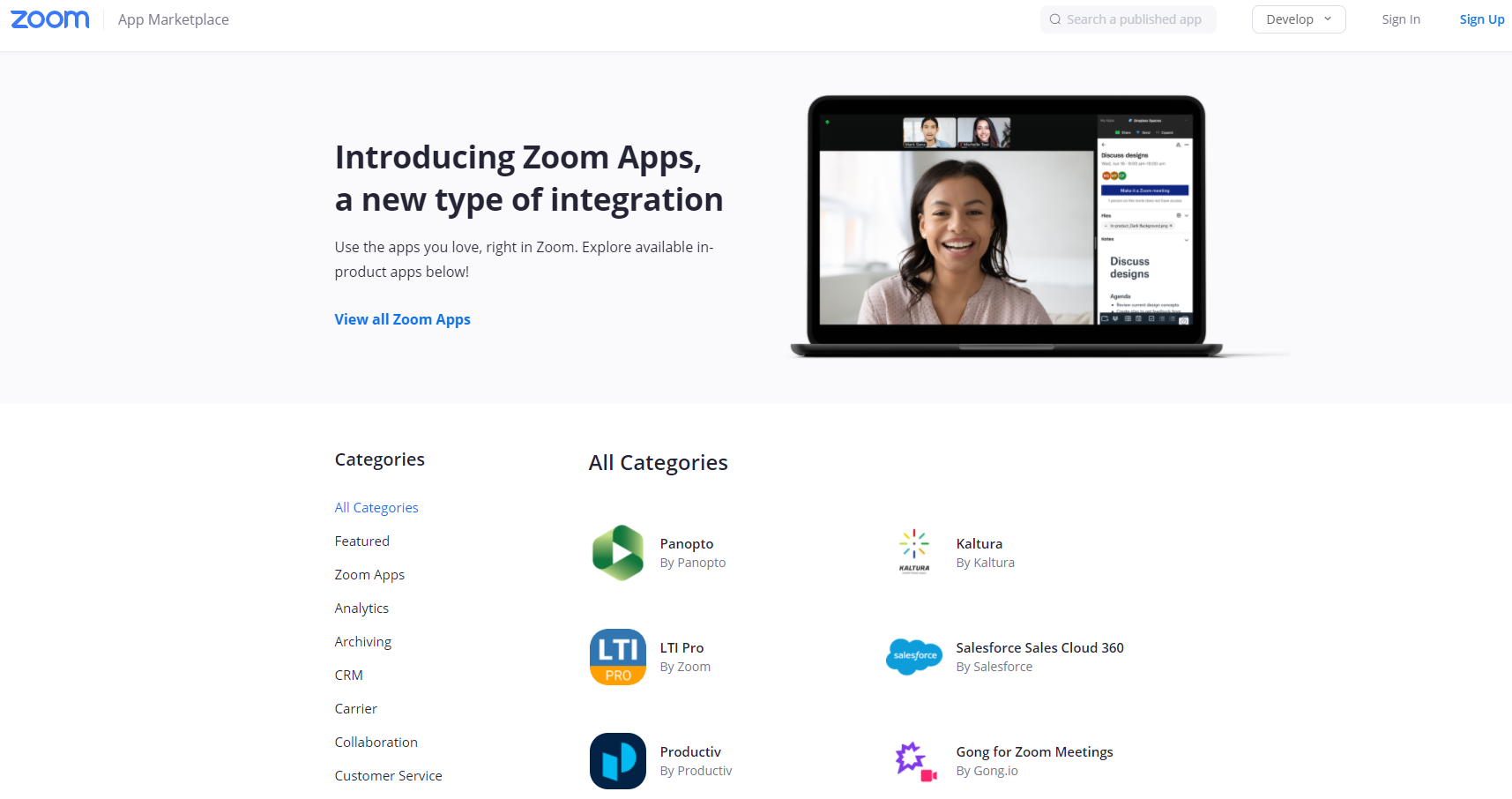
In the menu bar click the Develop dropdown list and select View App types
If you are not already logged in, Zoom will prompt you with its login page.
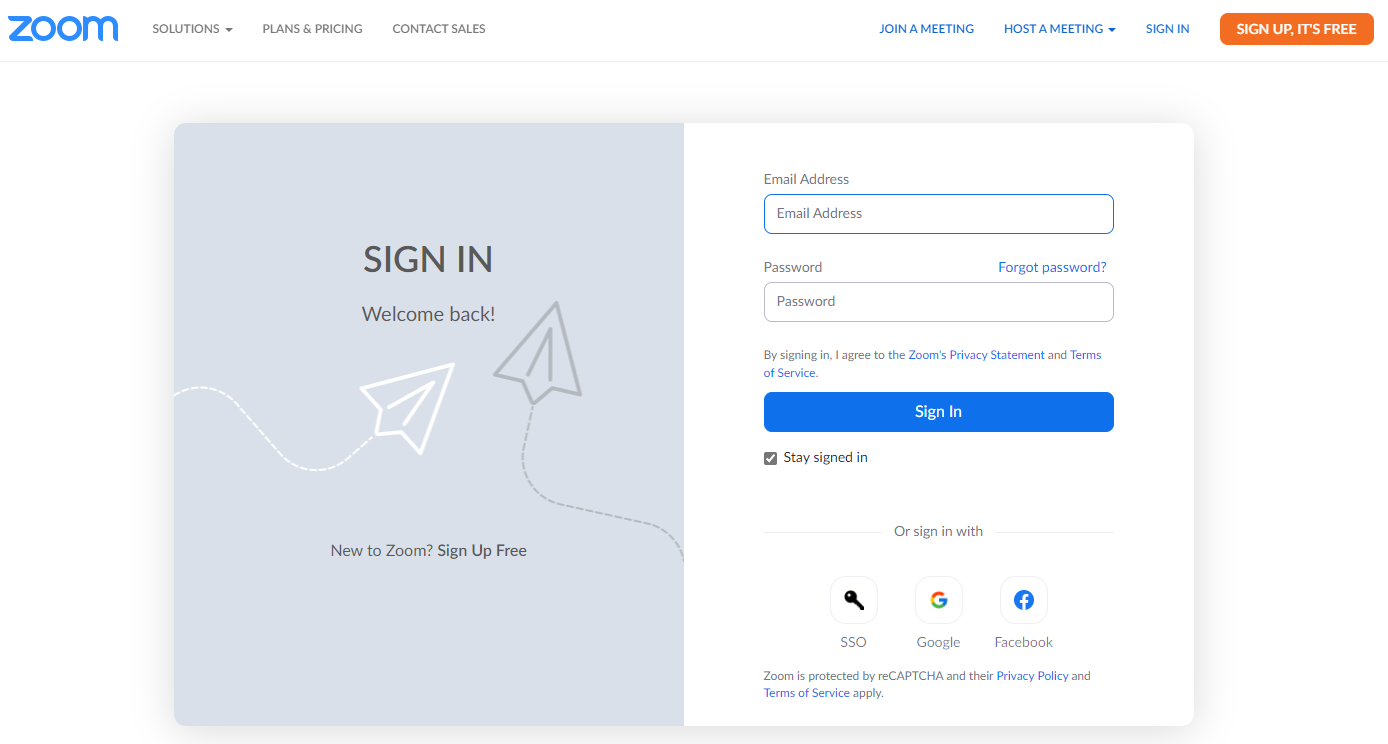
Login into your Zoom account
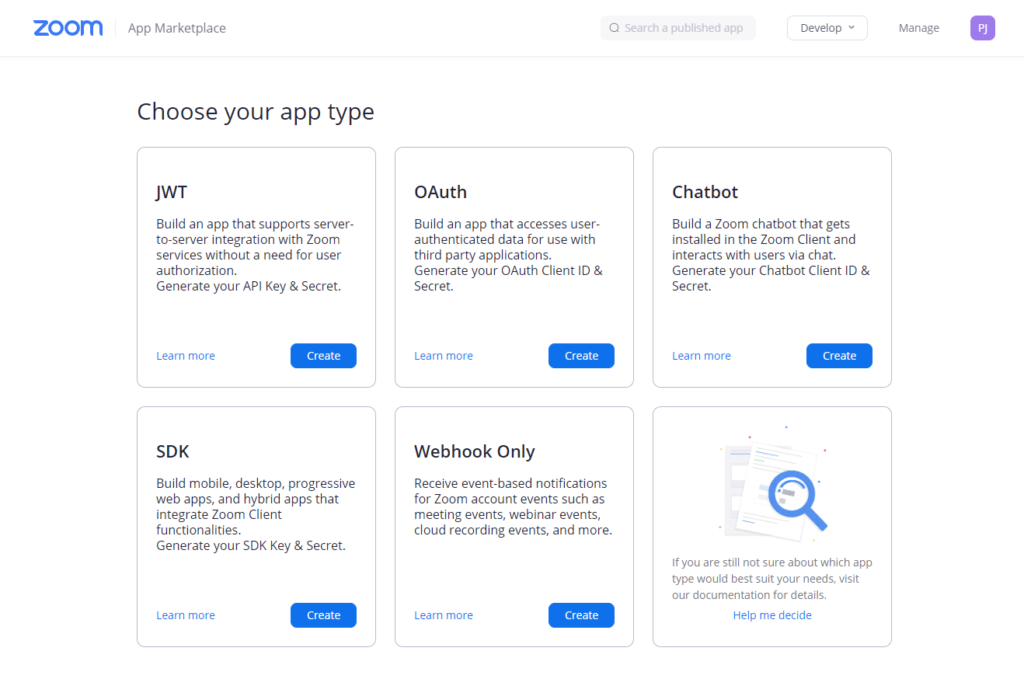
Click the Create button in the JWT box
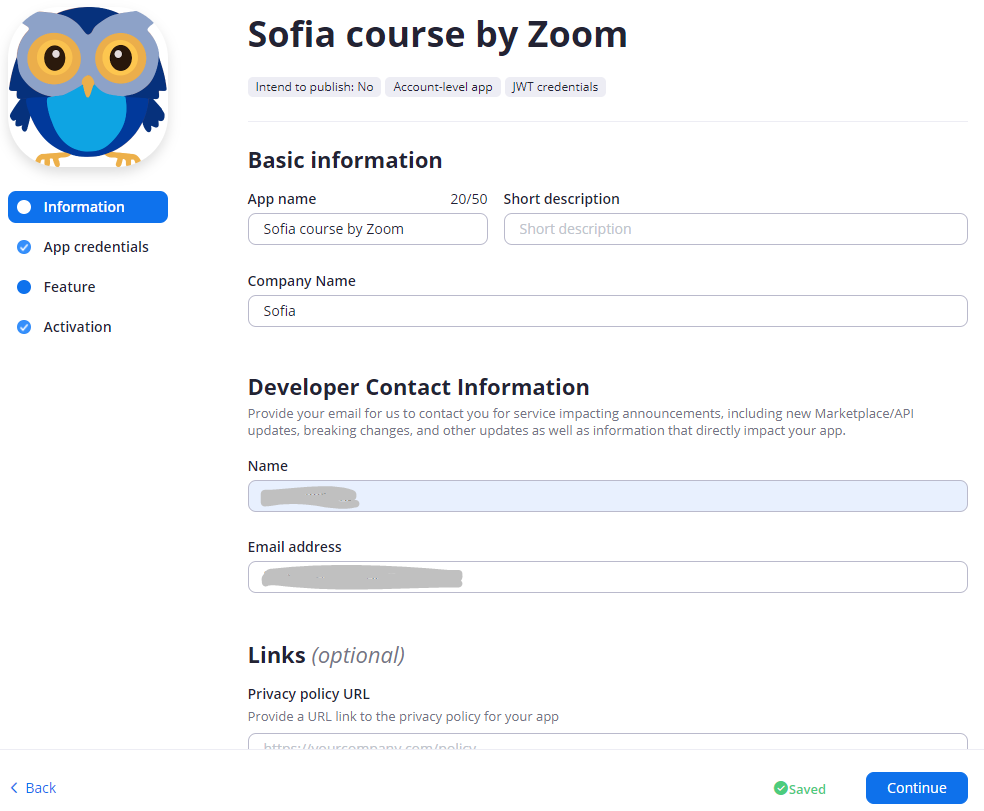
Enter the Basic information and upload an Icon if you like.
Enter the Developer Contact Information (this is your own information)
Then, go to the Activate tab
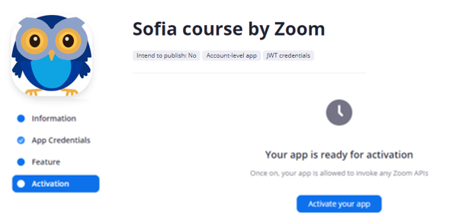
And press Activate your app to make the JWT operational
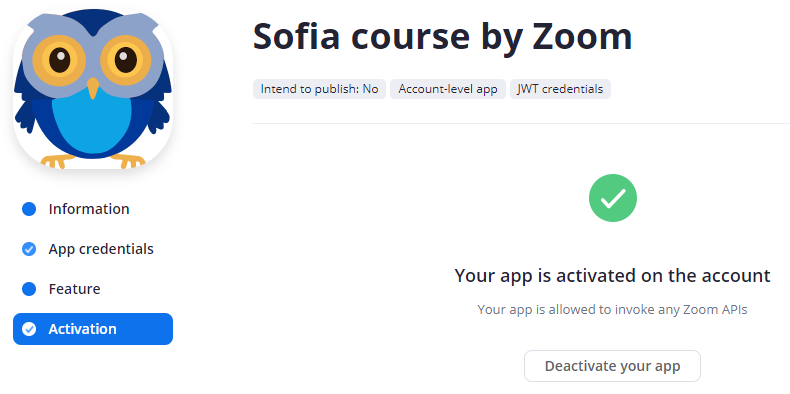
Now you will be able to view your newly validated App Credentials.
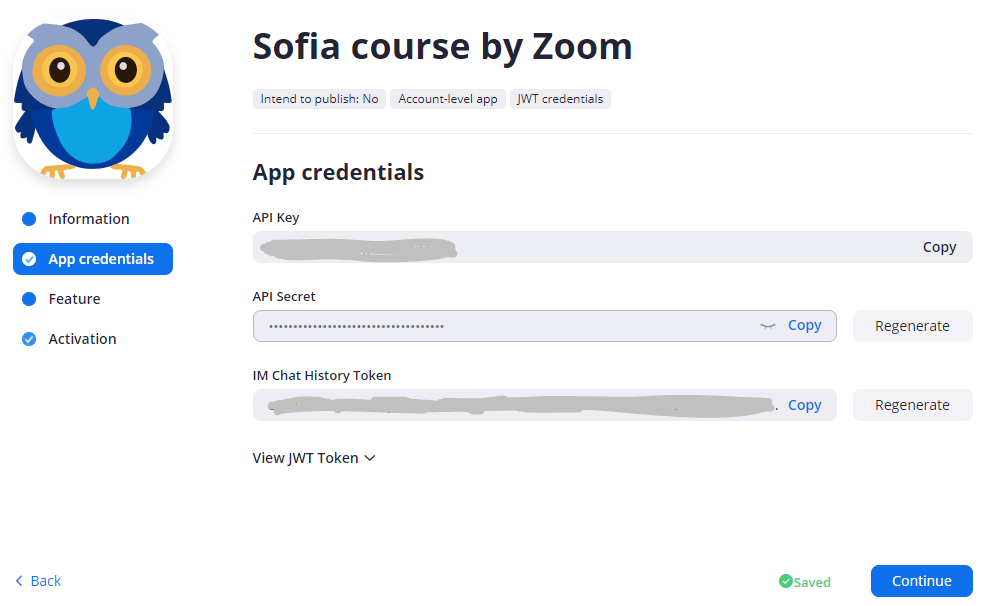
Connect your Zoom JWT App API keys to your Sοφία Instructor account
Login to your Sοφία Instructor Dashboard
In your Dashboard navigate to Instructor > Zoom
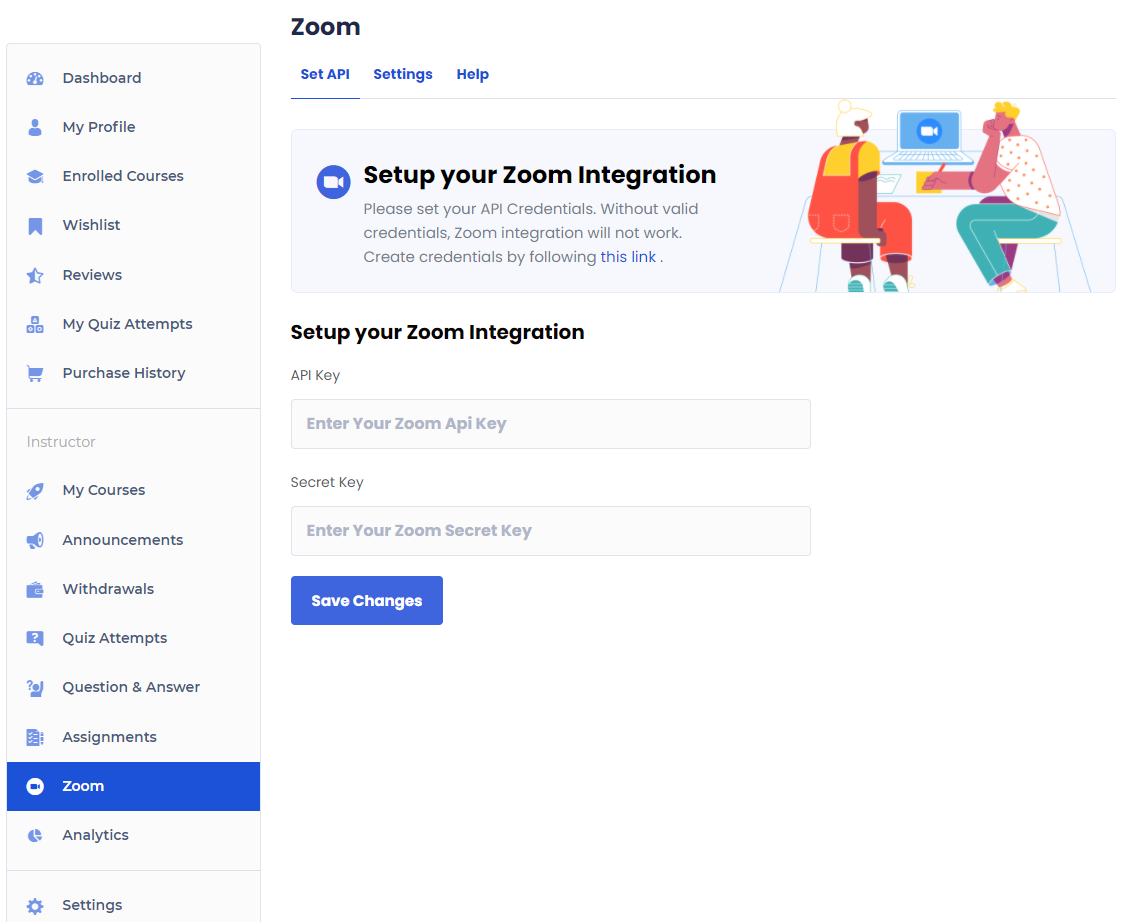
API Key: This can be found in the JWT app credentials in your Zoom app that you created.
Secret Key: This can also be found in the JWT app credentials. This is labeled as API Secret.
Copy the API key and Secret key from the JWT you just created in the Zoom App Marketplace
Paste your API key and Secret key from the JWT you just created
Then click the Save changes button to save your changes.
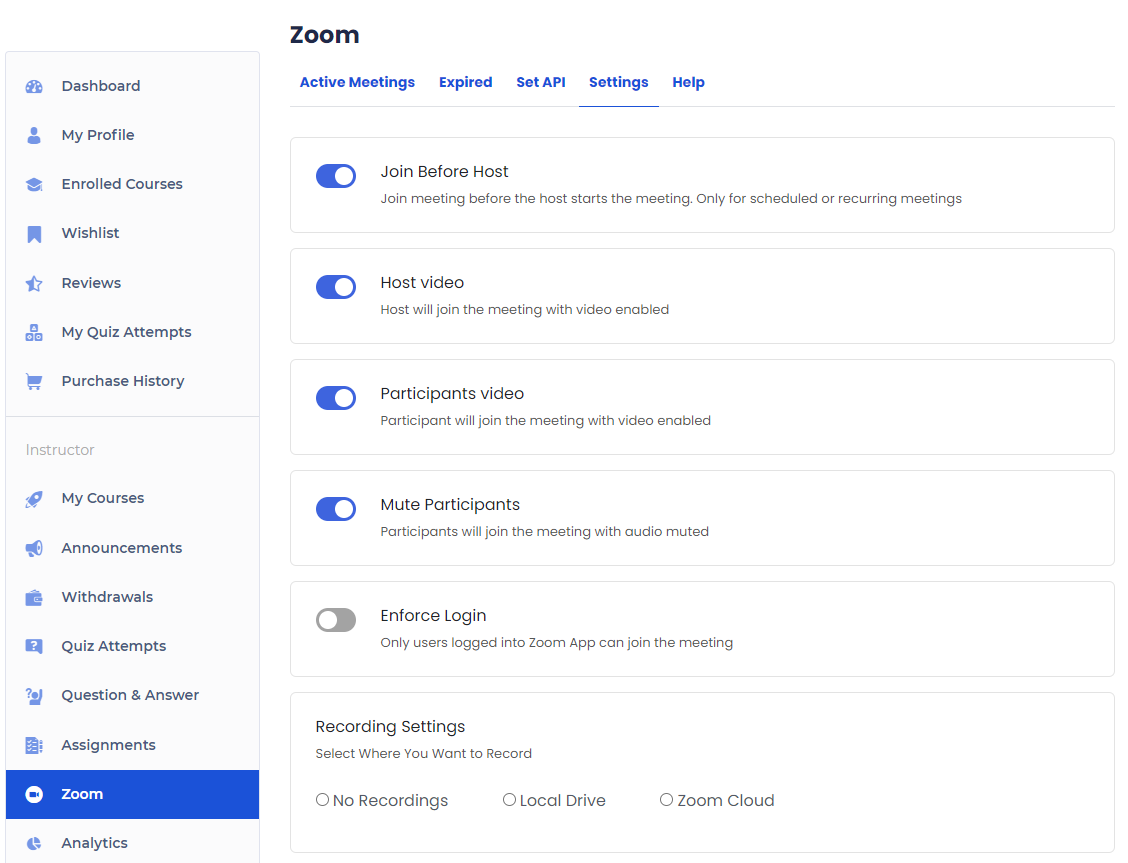
Join Before Host: This will allow students to join before the instructor. Only applicable for scheduled or recurring meetings
Host Video: This will start the host’s video when the host joins a meeting
Participants Video: This will start with video-enabled when a participant joins the meeting
Mute Participants: The participants’ audio will be muted initially when they join a meeting
Enforce Login: This will only allow users who have logged into Zoom to join the meeting.
Recording Setting: You can specify what kind of recording access you want to give to students.